

Menu bar app
On macOS, dryfit has an app: a menu in the menu bar for what you do all day, and a window for setting things up. Everything the CLI does day to day can be done there, without a terminal. It needs macOS 26 or newer and talks to the same background service as the CLI, so you can use both.
The window
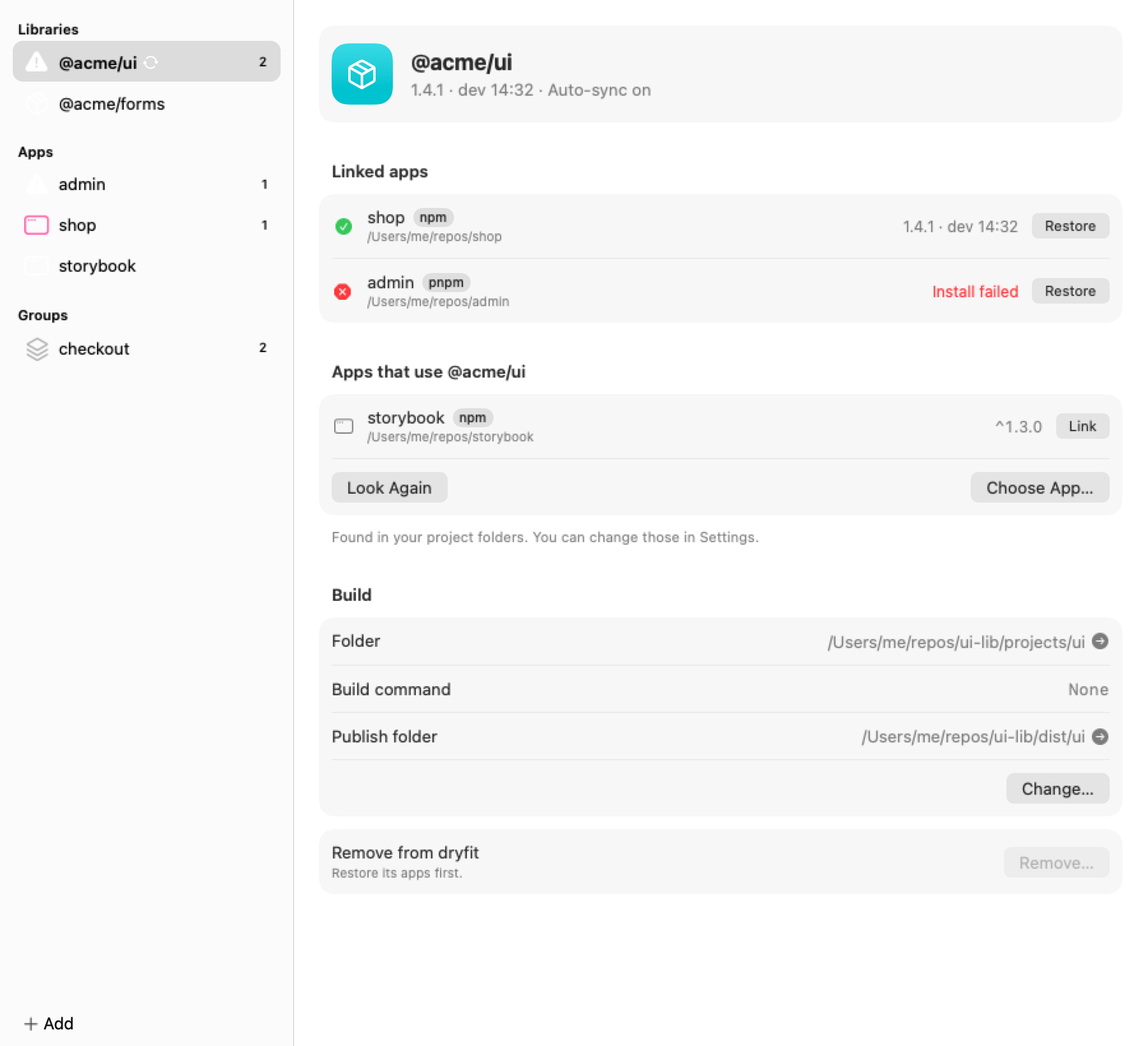
Section titled “The window”Open it from the menu with Open. The first time the app starts, it opens by itself and walks you through three steps: choose the folders where your apps live, add a library, and link it to an app.
- Add Library (the + button at the bottom of the sidebar, or ⌘O) asks for the library’s folder, then shows how dryfit will build it and which folder it publishes. Change either before adding it, or later with Change….
- A library’s page lists the apps it is linked into, with the version each one runs, and below them the apps in your project folders that use the library, each with a Link button. Choose App… links an app from anywhere else.
- Apps in the sidebar lists every app that uses one of your libraries, found in your project folders. An app’s page shows each of those libraries as a Dev build or a Release, with Link for the ones still on their release. Add App… (⇧⌘O) adds an app from outside your project folders. You can also drop a folder on the window: an app opens its page, a library opens the form that adds it.
- Sync Now builds, publishes and installs into every linked app. Turn on Auto-sync to do that every time you save a change in the library.
- Restore on a linked app puts that app back on the release of that one library and keeps its
other libraries linked. Restore All on an app’s page puts every library back. When the app’s
package.jsonchanged after linking, dryfit asks before overwriting the change. - New Group (⇧⌘N) saves apps you test together, so a library can be linked into, or restored from, all of them at once.
The menu
Section titled “The menu”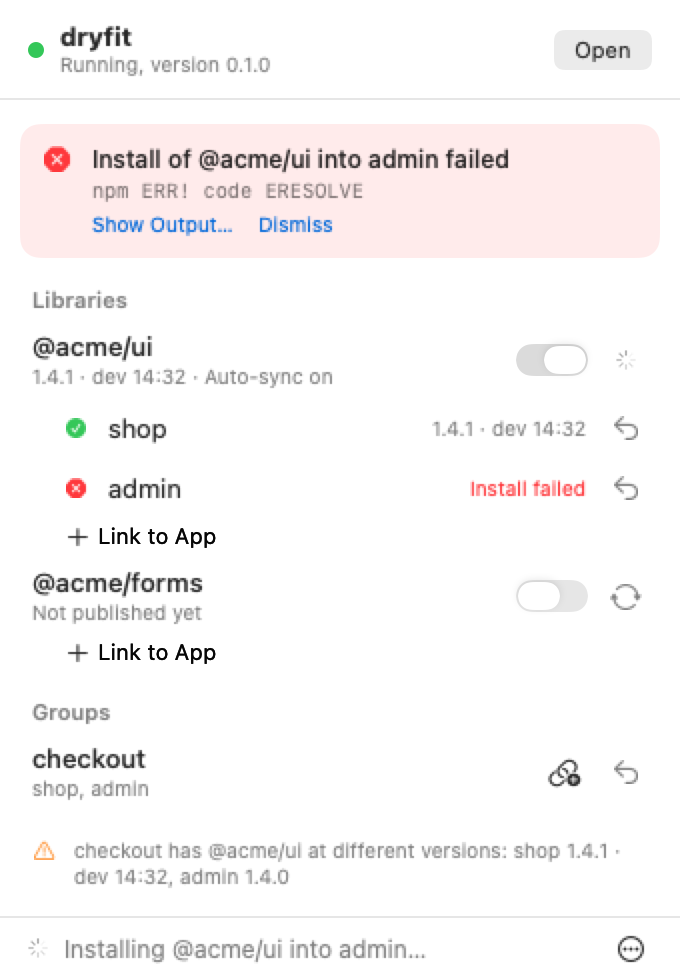
From the menu you can:
- turn Auto-sync on or off for each library, or sync it once;
- link a library to more apps, and restore an app;
- see each app’s installed version, and why an install failed, with the full output a click away;
- link and restore saved groups, and see when a group’s apps disagree on a version;
- start or stop dryfit, and open its log.
It also tells you, in a notification, when an install fails while the menu is closed.
Settings
Section titled “Settings”Settings (⌘,) holds the folders dryfit searches for apps, dryfit’s service with its log, Open at login, and updates.
Install
Section titled “Install”The app needs macOS 26 or later. Download Dryfit.dmg, open it and drag Dryfit to Applications.
The app is not notarized by Apple yet, so the first time you open it macOS says it cannot check it and offers only Done and Move to Trash. Choose Done, open System Settings → Privacy & Security, and under Security choose Open Anyway for Dryfit. macOS remembers the choice, and the updates the app installs itself do not ask again. To do the same from a terminal:
xattr -dr com.apple.quarantine /Applications/Dryfit.appThe app runs dryfit’s command-line tool in the background. If it is not installed, the app offers to
install it with npm (npm install --global @dryfit/cli), which needs Node.js.
Updates
Section titled “Updates”Install the app once; it keeps itself up to date. Once a day it looks for a new version, downloads it in the background, and replaces and reopens itself the next time you are not using it. Your libraries, apps and links are untouched: they live in dryfit’s service, which keeps running.
The app updates only itself. dryfit’s command-line tool, which runs the service, comes from npm, so when
it is older than the app, the menu says so and offers Update: it runs
npm install --global @dryfit/cli@latest, then restarts dryfit on the new version. Your libraries,
links and watches carry over. Settings shows the same.
To choose when, turn off Install updates automatically in Settings: the app then asks before installing. Check for Updates… in the menu’s ⋯ looks right away. Versions from before 0.3.0 do not update themselves; download the newest once more.